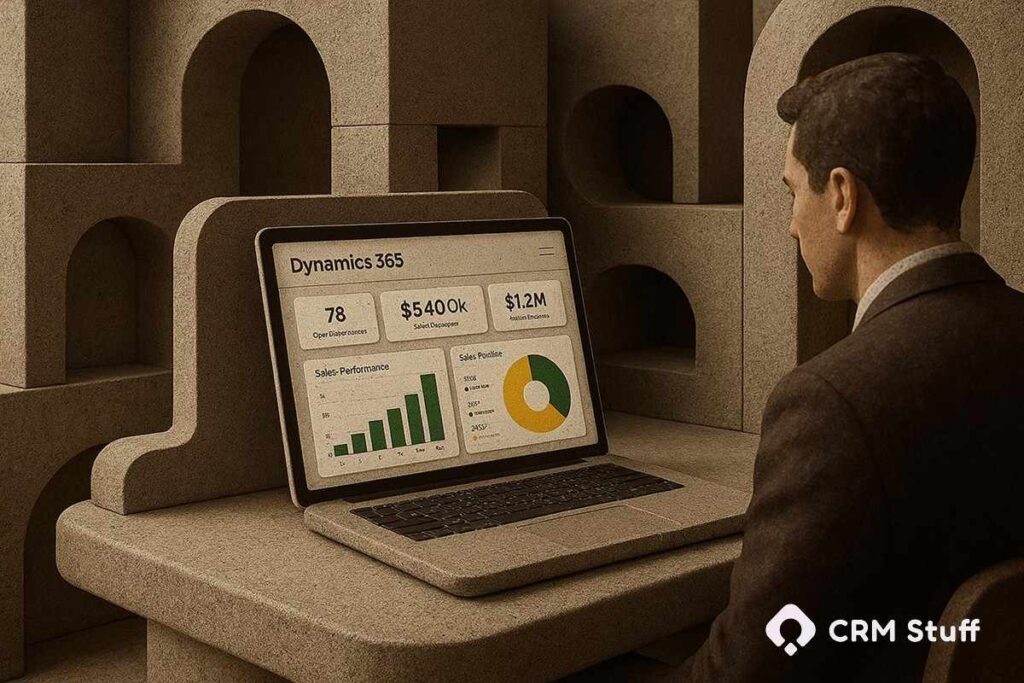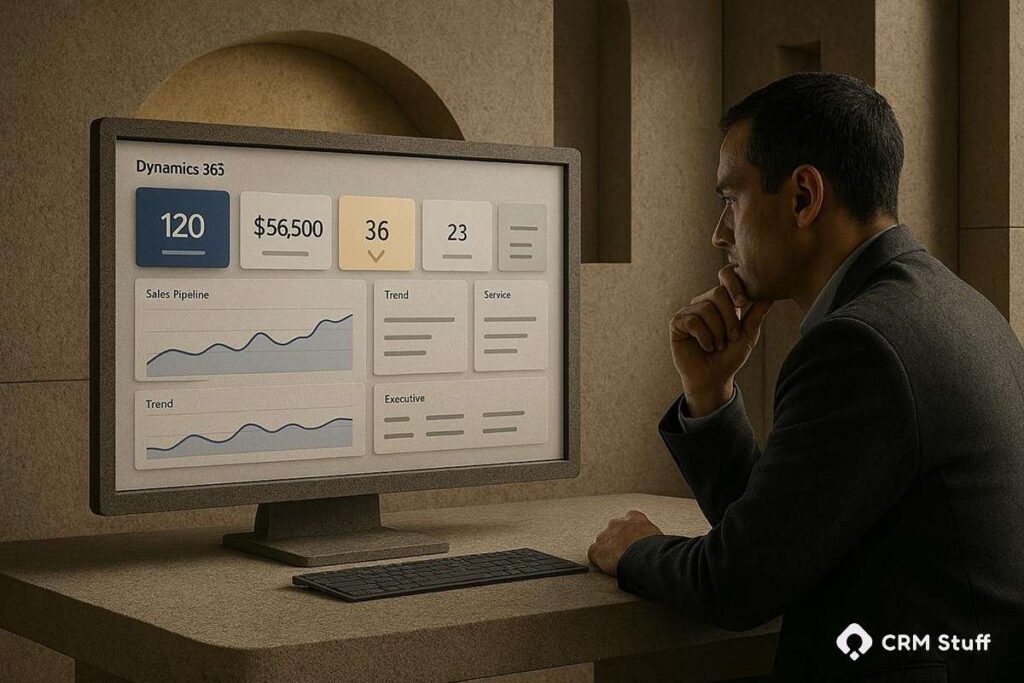
Most Dynamics 365 users sit on a goldmine of data, yet still struggle to make fast, confident decisions. Sales leaders dig through reports. Managers export data to Excel. Executives rely on outdated snapshots. The problem isn’t the CRM it’s how the data is presented. Out-of-the-box views rarely reflect how real teams think or operate. That’s where custom dashboards change everything.
When built correctly, dashboards turn raw CRM records into clear, decision-ready insights. They surface what matters now, not what’s buried three clicks deep. In Dynamics 365, custom dashboards can align data with roles, priorities, and daily workflows if they’re designed with intent.
This guide breaks down how to build custom dashboards in Dynamics 365 that actually support decision-making, not just reporting. You’ll learn how to design dashboards that reflect real business questions, use CRM reporting intelligently, and apply data visualization best practices—whether you’re using native tools or Power BI. The goal is simple: better decisions, made faster, with confidence.
Custom dashboards in Dynamics 365 help drive better decisions by presenting real-time CRM data in a role-based, visual format. By combining relevant charts, views, and KPIs, teams can quickly understand performance, spot issues early, and act without relying on manual reports or exported data.
What Are Custom Dashboards in Dynamics 365?
Custom dashboards in Dynamics 365 are tailored visual interfaces that display CRM data based on specific business needs. Unlike default dashboards, they are built to answer real operational questions rather than show generic activity metrics.
At their core, dashboards combine charts, lists, and KPIs from CRM entities such as leads, opportunities, cases, or accounts. The difference is intent. A custom dashboard is designed around a decision what someone needs to know at a glance to act confidently.
Dynamics 365 supports multiple dashboard types, allowing flexibility depending on the audience and use case.
- System dashboards for organization-wide visibility
- Personal dashboards for individual roles or teams
- Interactive dashboards for high-volume sales or service environments
When dashboards are aligned with how teams think and work, they stop being “reports” and start becoming daily decision tools.
Why Custom Dashboards Drive Better Business Decisions
Decisions improve when information is timely, relevant, and easy to interpret. Custom dashboards excel because they remove friction between data and action.
Instead of forcing users to search across entities or export reports, dashboards consolidate insights into a single, focused view. Trends become visible. Bottlenecks stand out. Priorities are clear. This is especially powerful in fast-moving sales or service environments where timing directly impacts outcomes. Microsoft itself emphasizes this decision-centric approach when explaining how Dynamics 365 dashboards help users monitor performance and act faster across roles and teams:
Custom dashboards also support role-based clarity. A sales representative needs pipeline health and follow-up urgency. A manager needs forecast accuracy and team performance. An executive needs growth trends and strategic indicators. Showing everyone the same dashboard dilutes its value and slows decision-making.
Effective dashboards drive better decisions because they:
- Reduce cognitive overload
- Highlight exceptions instead of averages
- Encourage proactive action instead of reactive reporting
When people trust what they see, they act faster—and with far more confidence.
Planning a High-Impact Custom Dashboard
Strong dashboards start before anything is built. Planning is where most dashboards succeed—or quietly fail.
The first step is understanding who the dashboard is for and what decisions they make daily. A dashboard without a decision attached to it is just decoration. Every component should answer a specific question.
Next, identify the KPIs that truly influence outcomes. More data is not better data. Focus on metrics that signal progress, risk, or opportunity. Finally, confirm that the required data is accurate, updated, and owned by the right teams.
Effective planning focuses on:
- Decision-makers and their responsibilities
- One primary goal per dashboard
- Clear success metrics defined upfront
This foundation ensures dashboards remain useful long after launch.
Step-by-Step: How to Build Custom Dashboards in Dynamics 365
Building a custom dashboard in Dynamics 365 is a structured process, but the technical steps should always serve the business goal.
Start by selecting the dashboard type and layout. Choose fewer components with larger visual space. Clarity beats density. Then create charts that reflect trends over time, not just totals. Pair charts with views so users can drill into records immediately.
Filters and interactivity matter. Dashboards should adapt to user roles and allow quick exploration without complexity. For advanced scenarios, embedding Power BI dashboards can unlock richer analytics and real-time insights.
A practical build process includes:
- Selecting the right layout and number of components
- Creating charts tied to meaningful KPIs
- Adding views that support immediate action
- Testing with real users before rollout
Testing often reveals what data looks good versus what actually helps people decide.
Best Practices for Designing Effective Custom Dashboards
Design determines whether dashboards are adopted or ignored. Even accurate data fails if the layout confuses users.
Simplicity is the guiding principle. Each dashboard should tell one story. Visual hierarchy helps users scan information quickly, with the most important metrics placed first. Consistent colors and labels reduce interpretation errors.
Avoid designing dashboards for aesthetics alone. Every element should earn its place by supporting a decision or action.
High-performing dashboards follow these principles:
- One dashboard, one purpose
- Clear labels and consistent metrics
- Minimal scrolling and clutter
When dashboards feel intuitive, adoption happens naturally.
Advanced Customization Techniques
As organizations mature, dashboards often need deeper customization. Dynamics 365 supports advanced scenarios through security roles, automation, and integrations.
Role-based dashboards ensure users only see what’s relevant and permitted. This improves focus and supports compliance. Automation tools can surface insights proactively, such as highlighting stalled deals or SLA risks.
For complex analytics, integrating Power BI adds predictive insights and richer visualizations while keeping data within the CRM ecosystem.
Advanced techniques are most valuable when dashboards evolve with business complexity, not before.
Common Mistakes to Avoid When Building Custom Dashboards
Many dashboards fail quietly. They load correctly, but no one actually uses them—and that’s often the most dangerous kind of failure.
One of the most common mistakes is overcrowding dashboards with too many metrics. When everything feels important, nothing truly is. Another frequent issue is designing dashboards based on assumptions rather than real user behavior. Dashboards should reflect how sales, service, and leadership teams actually work—not how we think they should work.
Ignoring ongoing maintenance is equally damaging. Business processes evolve, KPIs shift, and dashboards must evolve with them. A dashboard built once and left untouched quickly loses relevance and trust.
That’s why dashboards should be reviewed regularly to confirm they’re still answering the right questions and supporting daily decisions. If users stop opening a dashboard, that’s not a user problem it’s a design signal.
If you’re refining or rebuilding your dashboards, it’s worth following proven principles that keep them actionable and adoption-friendly. You can explore these Dynamics 365 dashboard best practices to ensure your dashboards stay focused, flexible, and genuinely useful:
Conclusion
Custom dashboards in Dynamics 365 are not about better reporting—they’re about better thinking. When dashboards are designed around real decisions, they transform raw CRM data into clarity, focus, and direction.
By prioritizing purpose, simplicity, and relevance, organizations can move faster, reduce uncertainty, and align teams around a single, trusted source of truth. The result isn’t just cleaner dashboards—it’s stronger, more confident decision-making across every level of the business.
For teams that want dashboards built the right way from the start, working with experts can make a measurable difference. A professionally planned Dynamics 365 CRM dashboard setup ensures your dashboards reflect real workflows, accurate data, and evolving business goals—not assumptions. You can explore how CRM Stuff supports end-to-end CRM configuration and dashboard implementation here:
Ultimately, the most effective dashboards don’t just display information—they guide action. When your CRM dashboards become a daily decision companion rather than a passive report, they help teams stay aligned, proactive, and confident as the business grows.
FAQs
How long does it take to build a custom dashboard in Dynamics 365?
Simple dashboards can be built in hours, while complex role-based dashboards may take several days including testing.
Do custom dashboards impact Dynamics 365 performance?
Well-designed dashboards do not. Poorly optimized queries and excessive components can affect load times.
Can non-technical users create custom dashboards?
Yes. Basic dashboards can be created using built-in tools without coding.
When should Power BI be used instead of native dashboards?
Use Power BI for advanced analytics, large datasets, or predictive insights.
How often should dashboards be reviewed or updated?
Quarterly reviews are recommended to ensure dashboards still align with business goals.