
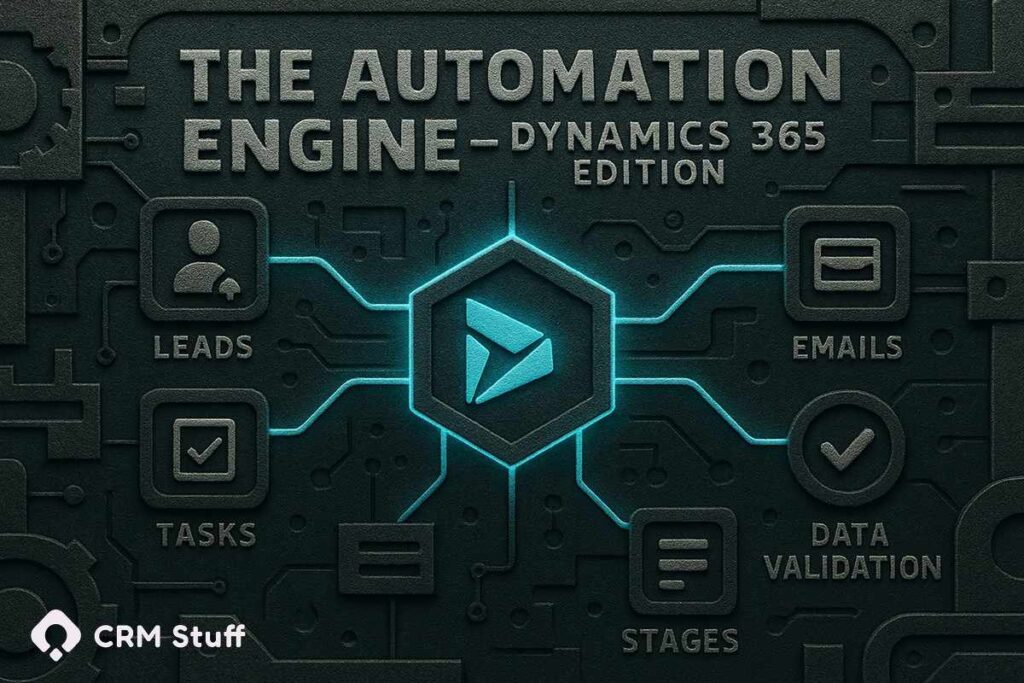
Most teams using Dynamics 365 spend far more time on manual CRM tasks than they realize. Logging activities, updating fields, routing new leads, sending follow-ups, fixing data issues these tiny tasks stack up quickly. The result? Slower sales cycles, inconsistent customer experiences, and hours of productivity lost every week.
But here’s the good news: nearly 70% of the work your team does inside Dynamics 365 can be automated with the right workflows.
In this guide, you’ll learn exactly how CRM automation works inside Dynamics 365, which tasks you should automate first, and the real automation ideas you can implement to eliminate repetitive manual work for good.
CRM automation in Dynamics 365 uses workflows, triggers, and AI-driven processes to eliminate repetitive tasks like data entry, follow-ups, lead routing, and record updates. It helps teams save time, reduce errors, and improve customer response speed while keeping CRM data accurate and consistent across the entire sales and service pipeline.
If you’re new to automation or implementing CRM for your business, you can explore our full list of CRM development services here:
CRM Services.
What Is CRM Automation in Dynamics 365?
CRM automation in Dynamics 365 is the process of using built-in workflows, triggers, Power Automate flows, and AI features to handle repetitive CRM tasks without human effort. Instead of manually updating records, assigning leads, sending reminders, or creating tasks, Dynamics 365 performs these actions automatically based on rules you configure.
At its core, CRM automation removes the need for routine admin work inside the CRM. When a lead submits a form, when an opportunity hits a certain stage, when a customer opens a support ticket automation takes over instantly. This ensures fast, consistent, and accurate execution of sales, marketing, and service processes.
Dynamics 365 supports automation through:
- Workflow automation (classic workflows + real-time workflows)
- Power Automate (cloud flows, instant flows, scheduled flows)
- Business Rules (field logic, validation, auto-calculations)
- AI Builder & Copilot (AI-driven suggestions and actions)
- Customer Insights Journeys (formerly Marketing automation)
These tools work together to replace manual CRM tasks with clean, reliable, repeatable processes that scale with your business.
Why Manual CRM Work Is a Problem
Most businesses underestimate how much time their team loses to small, repetitive CRM tasks. Updating contact details, logging follow-ups, changing opportunity stages, reassigning leads, creating tickets, and cleaning messy data might not seem like much individually but together, they create workflow bottlenecks that slow down the entire organization.
Manual CRM work leads to three major problems:
1. It kills productivity.
Sales and service teams spend hours every week doing admin tasks instead of talking to customers, closing deals, or resolving issues. Dynamics 365 becomes a documentation tool rather than a growth engine.
2. It introduces human errors.
Missed fields, wrong data, inconsistent updates, and forgotten follow-ups are unavoidable when everything depends on human memory. These errors compound over time and affect forecasting, reporting, and customer satisfaction.
3. It creates inconsistency across the team.
Every team member follows their own “method,” which leads to patchy processes. One person updates the pipeline daily. Another forgets. Someone responds instantly, someone else takes two days. Automation eliminates this inconsistency by enforcing the process every single time.
In short: manual CRM work slows your team, damages your data, and reduces revenue opportunities all problems Dynamics 365 automation can solve instantly.
Key Benefits of Using Dynamics 365 Automation
Dynamics 365 automation does more than just “save time.” It transforms how teams operate, how data flows through the business, and how reliably your processes run every day. When the system handles repetitive tasks for you, your team gets to focus on the high-value work that actually drives revenue. Microsoft frequently releases improvements to automation features, which you can follow through the official Dynamics 365 product updates, and also you can read our CRM Stuff insights.
Here are the most important benefits:
1. Massive Time Savings
Automating tasks like data entry, lead assignment, follow-ups, and pipeline updates frees your team from hours of admin work each week. What once took minutes or even hours happens instantly in the background.
2. Fewer Errors and Cleaner Data
Manual updates almost always lead to inconsistencies missing fields, incomplete records, wrong statuses, duplicate entries. Automated workflows enforce data correctness and ensure every record follows the same rules.
3. Consistent Follow-Up and Faster Responses
With automation, leads are contacted the moment they express interest. Opportunities receive timely reminders. Service tickets are routed instantly. Nothing falls through the cracks.
4. Better Pipeline and Forecast Accuracy
When processes update automatically, you get real-time accuracy in your dashboards. This helps leaders forecast better, plan resources, and understand team performance without guesswork.
5. Higher Team Productivity
Instead of wasting time on admin, your sales and service teams can focus on conversations, relationships, deals, and resolutions the work that moves the business forward.
6. Scalability Without More Hiring
As your company grows, automation ensures your CRM workload doesn’t explode with it. You can handle more customers, more leads, more tickets, and more tasks without expanding your team.
7. Improved Customer Experience
Fast responses, consistent communication, personalized journeys, and fewer errors lead to better customer satisfaction all powered by automation working quietly in the background.

Real CRM Automation Ideas & Use Cases (You Can Implement Today)
These are the exact automations businesses use inside Dynamics 365 to eliminate thousands of repetitive tasks every month. You can copy these ideas directly into your workflows.
1. Auto-Assign New Leads to the Right Sales Rep
Instead of manually choosing who handles each lead, Dynamics 365 can instantly route leads based on:
- Territory
- Product interest
- Lead score
- Industry
- Availability or workload
This ensures fast responses and eliminates misrouted leads.
2. Auto-Send Follow-Up Emails After Form Submission
When a prospect fills out a form, Dynamics 365 can:
- Send a confirmation email
- Notify the assigned rep
- Create a follow-up task
- Update the lead status
- Trigger a nurture sequence
No human touches required.
3. Auto-Update Lead or Opportunity Status
When key actions are completed like calls, emails, meetings, or proposals Dynamics 365 can automatically update:
- Lead status
- Opportunity stage
- Probability
- Estimated revenue
- Close/date fields
This keeps your pipeline accurate without manual input.
4. Auto-Create Tasks for Missed or Overdue Follow-Ups
If a rep hasn’t contacted a lead within a set timeframe, the CRM automatically:
- Creates a follow-up task
- Sends reminders
- Alerts team members or managers
Nothing slips through the cracks.
5. Auto-Clean and Validate CRM Data
Dynamics 365 automation can enforce data quality by:
- Preventing incomplete records
- Auto-filling standard fields
- Removing duplicates
- Validating email/phone formats
- Ensuring mandatory fields are completed before moving forward
Clean data = better reporting.
6. Auto-Route Service Tickets to the Right Agent
For Customer Service teams, D365 can instantly route tickets based on:
- Skills
- Priority
- Customer type
- SLAs
- Product category
This reduces resolution time and boosts CSAT.
7. Auto-Generate Reports & Dashboards
Instead of manually building weekly or monthly reports, Dynamics 365 can:
- Refresh dashboards
- Update KPIs
- Email reports to managers automatically
- Trigger alerts when thresholds are hit
Leaders get insights without extra effort.
8. Auto-Notify Teams When High-Value Actions Occur
Examples:
- “Hot” lead detected (based on behavior scoring)
- Deal moves to a final stage
- Ticket breaching SLA soon
- Customer submits negative feedback
These proactive alerts increase response speed and prevent escalations.
9. Auto-Create Renewal or Upsell Opportunities
When a subscription, contract, or service package is nearing expiration, the CRM can:
- Create a renewal opportunity
- Notify the account manager
- Start an automated email sequence
- Log all actions in timeline
No rep will ever forget a renewal again.
10. Auto-Sync Records Across Apps (ERP, Email, Website)
With Power Automate, Dynamics 365 can sync data between:
- ERP systems
- Marketing tools
- Customer support apps
- E-commerce platforms
- HR systems
All without human intervention.
11. Auto-Score Leads Based on Behavior
Dynamics 365 can automatically increase or decrease lead score based on:
- Email opens
- Website visits
- Form submissions
- Event registrations
- Demo requests
This helps your team prioritize the hottest leads instantly.
Step-by-Step Guide to Start Automation in Dynamics 365
Most companies want automation but don’t know where to begin. The good news: you don’t need to automate everything at once. The smartest approach is to start small, automate high-impact tasks first, then scale your automation across the CRM.
Here’s a simple step-by-step roadmap you can follow:
Step 1: Audit Your Current CRM Processes
Before automating anything, identify the repetitive tasks your team performs daily, such as:
- Updating lead statuses
- Manually assigning leads
- Logging calls/emails
- Creating follow-up tasks
- Copying data from one record to another
- Cleaning up inconsistent or missing fields
Make a list of everything your team touches manually. These become your automation opportunities.
Step 2: Map Out the Workflow Logic
Automation only works when the process behind it is clear.
Define:
- What triggers the workflow (e.g., new lead created)
- What conditions must be met (e.g., region = USA)
- What actions should happen (assign → notify → create task → update field)
- What exceptions exist (e.g., leads missing email)
The clearer the logic, the cleaner the automation.
Step 3: Build Quick-Win Automations Inside Dynamics 365
Start with simple automations using:
Dynamics 365 Workflows
- Auto-update fields
- Auto-create tasks
- Auto-send internal notifications
Power Automate
- Cross-app integrations
- Multi-step workflows
- Advanced logic with conditions
- Automated emails
Business Rules
- Auto-populate fields
- Enforce data validation
- Maintain consistent formatting
These tools require little to no coding perfect for business users.
Step 4: Test Your Workflows Thoroughly
A common mistake is launching automation without testing edge cases.
Before going live, test:
- Every trigger
- Every action
- Exception scenarios
- Data accuracy
- Flow performance
- Impact on reporting
Testing ensures you don’t create duplicate tasks or break your pipeline logic.
Step 5: Train Your Team on the New Automations
Automation is not “set it and forget it.”
Your team needs to understand:
- What tasks are now automated
- What they no longer need to do manually
- What triggers workflows
- What notifications they should expect
- Where to report issues
Clear communication = higher adoption + fewer mistakes.
Step 6: Measure Results and Expand Automation
Once your first flows are live, measure:
- Time saved
- Lead response time
- Follow-up completion rate
- Data accuracy improvements
- Pipeline health
- Ticket resolution time (for service teams)
As results improve, expand automation into more areas such as renewals, service escalations, forecasting, and cross-department syncs.
Common Automation Mistakes & How to Avoid Them
Even though Dynamics 365 makes automation simpler than ever, many businesses still run into problems because they rush the process or automate the wrong things. Avoiding these mistakes will save you time, prevent workflow failures, and keep your CRM running smoothly.
1. Automating a Broken Process
Automation does not fix a bad workflow it just makes the mistakes happen faster.
If your current lead routing, follow-up process, or data entry steps are flawed, automate them after you improve the logic.
Fix:
Map the process first → simplify it → then automate.
2. Trying to Automate Everything at Once
Teams often get excited and want to automate every task immediately.
The result?
Confusing workflows, duplicated tasks, data loops, and endless troubleshooting.
Fix:
Start with 3–5 high-impact automations (lead assignment, follow-ups, reminders).
3. Ignoring Data Validation
Automation depends on data.
If the data is inconsistent, incomplete, or incorrect, your workflows can break.
Example mistakes:
- Missing required fields
- Wrong email format
- Mixed naming conventions
- Duplicate contacts or accounts
Fix:
Use Business Rules and Power Automate to enforce data quality.
4. No Testing Before Going Live
Launching an automation without proper testing can create:
- Duplicate tasks
- Endless loops
- Incorrect updates
- Wrong record assignments
This can overwhelm your CRM in minutes.
Fix:
Test every workflow with sample data across all edge cases.
5. Not Training the Team
If your team doesn’t know what’s automated, they will either:
- Repeat tasks manually
- Disable workflows
- Report “bugs” that aren’t errors
- Create inconsistent data
Fix:
Create a simple training document:
“What’s automated + What’s manual + Expected notifications”
6. Ignoring Exceptions and Edge Cases
Workflows fail when rare scenarios aren’t considered, such as:
- Leads with missing phone numbers
- Customers with incomplete history
- Tickets with unusual categories
Fix:
Add fallback rules:
“If field X is empty → assign to queue Y or notify admin.”
7. Not Reviewing Automations Regularly
Businesses evolve.
Processes change.
Teams grow.
If you never update your workflows, they become outdated or break silently in the background.
Fix:
Audit automation every 90 days.
Conclusion
Manual work inside a CRM feels small in the moment a field update here, a follow-up reminder there but over time, it slows down your entire sales and service operation. Dynamics 365 automation is the fastest, most reliable way to eliminate that hidden workload.
By automating lead routing, follow-ups, data cleanup, notifications, and task creation, your team can reclaim hours every week while improving accuracy, response speed, and customer experience. The best part? Most automations take minutes to set up and deliver value immediately.
Start with a simple CRM audit, build a few high-impact workflows, and expand over time. With consistent improvements, Dynamics 365 becomes more than a CRM it becomes a fully automated engine that runs your process reliably, freeing your team to focus on what matters most: relationships, revenue, and results.
Start small, automate high-impact tasks, and expand gradually. You can also explore CRM Stuff automation services tailored to your industry.
FAQs
1. How much manual work can Dynamics 365 automation realistically remove?
Most businesses can eliminate 50–70% of their repetitive CRM work by automating tasks like lead routing, follow-ups, data entry, record updates, and notifications. The exact percentage depends on how many workflows you implement.
2. What CRM tasks should I automate first in Dynamics 365?
Start with high-impact tasks: lead assignment, follow-up reminders, opportunity stage updates, data validation, and recurring task creation. These create instant time savings and improve pipeline accuracy.
3. Do I need coding skills to build automation in Dynamics 365?
No. Most automation can be built using no-code tools like Power Automate, Business Rules, and Dynamics 365 Workflows. More advanced scenarios may require a Dynamics 365 developer.
4. Is CRM automation safe for my data?
Yes — as long as workflows are tested properly. Automation actually improves data accuracy by enforcing rules, reducing human error, and keeping records consistent across the CRM.
5. Can small businesses benefit from CRM automation in Dynamics 365?
Absolutely. Small teams often gain the most because automation helps them operate like a larger organization — without hiring more staff. It improves response times, organization, and productivity.

